How to install
From nothing to a running paper bot
Nexus Trader trades your own Interactive Brokers account from your own Windows PC. Two programs run side by side: IBKR's Trader Workstation, which holds your broker session, and Nexus Trader, which makes the decisions and places the orders through it. This page sets both up, in order, with nothing assumed.
- The broker account — apply, fund, market data, two-factor. Mostly waiting; start it first.
- Install Trader Workstation — 15 minutes.
- The TWS settings the bot needs — 10 minutes, and the part people get wrong.
- Install Nexus Trader and run the setup wizard — 10 minutes.
- First day, and the one weekly duty.
- Going live later, and what to do when something does not work.
1 · The broker account
This is the slow part: applications and transfers take days, not minutes. Start here, and install the software while you wait.
Open an individual margin account with US stock permissions
Apply on the Interactive Brokers site for your country. Nexus Trader is offered to residents of Canada and the United States. Four answers matter:
- Account type: individual.
- Margin, not cash. The strategy borrows up to 1.5 times the account value; a cash account cannot do that and the software will not run as designed. Standard margin is enough — you do not need portfolio margin.
- Trading permissions: United States → Stocks. Nothing else is used. Leave options, futures, forex and crypto off.
- Market data status: answer the professional/non-professional questions honestly. Trading your own money, outside the finance industry, is normally non-professional, and professional data costs far more.
Registered accounts (TFSA, RRSP, RESP and the like) are not margin accounts and cannot be used.
Fund it
Transfer from a bank account in your own name, in Client Portal under Transfer & Pay. Money usually lands in a few business days.
How much: the published minimum is CAD 5,000 and the recommendation is CAD 7,000 or more (about US$5,000). IBKR's own minimum is lower, and it is not enough here: the strategy sizes each position by risk and rounds to whole shares, so a small account cannot buy the positions the method depends on. Fund only with money you can afford to see fall.
Subscribe to live US market data
In Client Portal: Settings → User Settings → Market Data Subscriptions. Subscribe to a real-time US stock package covering NYSE, NASDAQ and NYSE American. Top-of-book is enough; you do not need depth-of-book. Budget about US$5–15 a month.
Paper mode is different: it accepts IBKR's free delayed feed (about 15 minutes behind) and trades on it, so you can run the whole paper phase without a subscription. If you do subscribe, share the data with your paper account — in Client Portal under Settings → Paper Trading Account, turn on sharing of your market-data subscriptions — and paper will price off live quotes instead.
Turn on IB Key two-factor login
Install IBKR Mobile on your phone and activate IB Key in it (Authenticate → IB Key → Activate). Log out of Client Portal and back in to confirm the phone prompt arrives. You approve TWS logins with it, including the one weekly login in part 5.
Find your paper account
Every IBKR client gets a free simulated account. Its username is different from your live one and is shown in Client Portal under Settings → Paper Trading Account. Keep those details to hand: everything below starts there. Live account ids begin with U; paper ids begin with DU.
2 · Install Trader Workstation
TWS is IBKR's own desktop platform. Nexus Trader talks to it, and you keep the broker's own screens to watch your positions and stops while the bot works.
Download and install
On the IBKR website go to Trading → Trading Platforms → Trader Workstation and take the Stable Windows build, not the latest beta. If IBKR offers the Stable build as an offline installer, prefer it: IBKR says the nightly Auto restart (part 3) works best on offline versions, because a failed automatic update can interrupt it. Run the installer with its defaults; it brings everything it needs. TWS uses about 1 GB of memory, which any Windows 10 or 11 PC from the last few years handles.
Log in to the paper account and leave it running
Start TWS, switch the login window to Paper Trading, enter the paper username and password, and approve the prompt on your phone if one arrives. Leave TWS running — minimised is fine. Do not place trades by hand in the account the bot manages.
3 · The TWS settings the bot needs
This is the part that decides whether anything works. It takes ten minutes. The connection never leaves your PC: the bot dials 127.0.0.1, which means "this computer", and nothing is opened to the internet.
Turn on the API
In TWS: Edit → Global Configuration → API → Settings (File instead of Edit in the Mosaic layout). Set exactly this:
| Setting | Value | Why |
|---|---|---|
| Enable ActiveX and Socket Clients | ON | The API switch. Off, and the bot cannot connect at all. |
| Read-Only API | OFF | A new TWS has it ticked — untick it. Read-only blocks every order, including the protective stop orders. |
| Socket port | 7497 paper 7496 live | The number the bot dials. It must match the mode you are in. |
| Allow connections from localhost only | ON | The default — leave it ticked. TWS then lets the bot on this PC connect without asking, and nothing needs adding to Trusted IPs. Unticked, TWS can pop up a dialog asking you to accept each connection — with nobody at the keyboard, that blocks trading. |
| Download open orders on connection | ON | Lets the bot see the stop orders already resting at IBKR when it reconnects, and manage them instead of treating them as unknown. |
| Master API client ID | leave blank | Not used. |
Click OK. If TWS asks to restart, let it.
Let the bot's orders through without a confirmation click
TWS can stop an order from a program and wait for someone to click "are you sure?" — for a size or value limit, or a price warning. Nobody is at the keyboard at 15:55 ET, so the bot's order would just sit there: an entry or a sale that never happens (before a sale the bot has already cancelled that position's stop), or a protective stop that never reaches IBKR. Switch those questions off for API orders.
Open Global Configuration again (Edit → Global Configuration, or File in the Mosaic layout) and choose API → Precautions — a separate page under API in the left pane, not the Settings page above.
Tick these boxes:
- Bypass Order Precautions for API Orders (some versions: Bypass Order and Ticket Precautions for API Orders and Tickets) — the one that matters: without it TWS can hold the bot's order for a click.
- Bypass Redirect Order warning for Stock API Orders — another warning an unattended program cannot answer.
- Bypass price-based volatility risk warning for API Orders — same reason.
Leave unticked: any box starting Suppress market cap. It keeps IBKR's price cap on market orders.
The other bypass boxes on the page (bonds, pair trades, advisor accounts, overfill, BBO routing) cover orders the bot never sends; ticking them does no harm. Leave Presets → Stocks → Precautionary Settings as they are. Click Apply, then OK.
Know which port goes with which mode
| Mode | Program | Account | Port |
|---|---|---|---|
| Paper (where you start) | Trader Workstation | DU… | 7497 |
| Live (later, by approval) | Trader Workstation | U… | 7496 |
| Advanced, optional | IB Gateway | paper / live | 4002 / 4001 |
The host is always 127.0.0.1. The bot checks on every connection that the account IBKR reports matches the mode it is in, and refuses the connection if they disagree. Setup always starts in paper, so if the setup wizard reports "PROFILE/ACCOUNT MISMATCH", TWS is logged in to your live account: log TWS in to your paper account.
IB Gateway is a headless alternative with the same API. It works, but it shows nothing on screen, and because of the one-session rule you would lose the ability to watch the account in TWS. Use it only if you know you want it; everything here assumes TWS.
Make TWS restart itself every night instead of closing
IBKR shuts TWS down once a day. With Auto logoff it simply closes and stays closed until someone starts it and logs in, and the bot can do nothing until then (it keeps retrying by itself: log in by about 3 PM ET and it still makes that day's 3:55 PM decision). With Auto restart TWS closes and reopens itself at the time you set and logs itself back in, with no password and no phone approval, Monday to Saturday (Sunday is part 5).
TWS reads the restart time on its own clock, which is not necessarily your PC's, so the first thing is to put that clock on New York time — the market's own clock, and the one setting that is right everywhere, all year:
- Log out of TWS. On the login screen open More Options, set Time Zone to America/New_York, and log in again. From then on TWS shows times in New York time.
- Open Edit → Global Configuration → Lock and Exit (File instead of Edit in the Mosaic layout; the gear icon at the top right of TWS also opens Global Configuration).
- Under Lock Trader Workstation, select Never lock (it reads "Never lock Trader Workstation" or "Never lock trading system"). A locked TWS drops the bot's connection.
- Choose Auto restart, not Auto logoff.
- Type 10:00, choose PM, and click Apply, then OK. If TWS says auto restart starts at your next login, or that the change needs a restart, click Yes and log in again when it reopens: Auto restart works from that login on.
Why 10:00 PM New York: the bot works until 20:00 ET and checks in once more around 21:00 ET, and IBKR's own nightly maintenance starts about 00:15 ET. Any time from 9:30 PM to 11:30 PM New York time also works. On the first evening, check that TWS closes and reopens by itself at 10:00 PM New York time.
Keep the PC on and awake
Leave the PC on and awake day and night. The bot works 04:00–20:00 ET on trading days, but TWS closes whenever Windows shuts down, restarts or loses power, and Auto restart does not bring it back — only a login does; the 10:00 PM New York restart also needs the PC awake. Nexus Trader's installer switches off sleep while the PC is on mains power. After any Windows restart — an update included — sign in to Windows, then start TWS and log in: Nexus Trader starts by itself when you sign in (with the installer's start-at-sign-in option) and starts the bot, but TWS does not. Schedule Windows Update restarts for a time you are at the PC.
4 · Install Nexus Trader
The installer is self-contained: no Python, no dependencies, nothing else to install. About 55 MB, Windows 10 or 11.
Download and run the installer
Get it from the Get started page. Windows SmartScreen may warn on first run because the installer is not yet code-signed; choose More info → Run anyway.
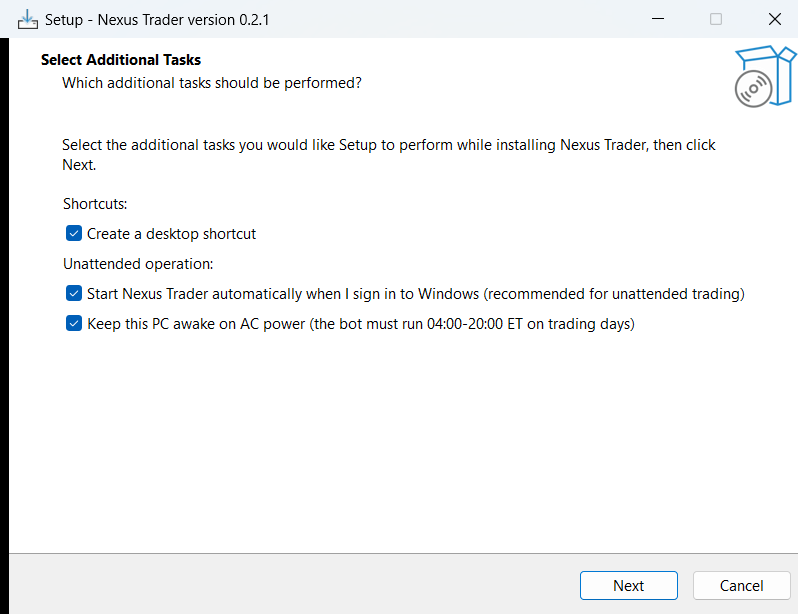
Take the two options under Unattended operation. They are what let the bot work while you are not at the machine.
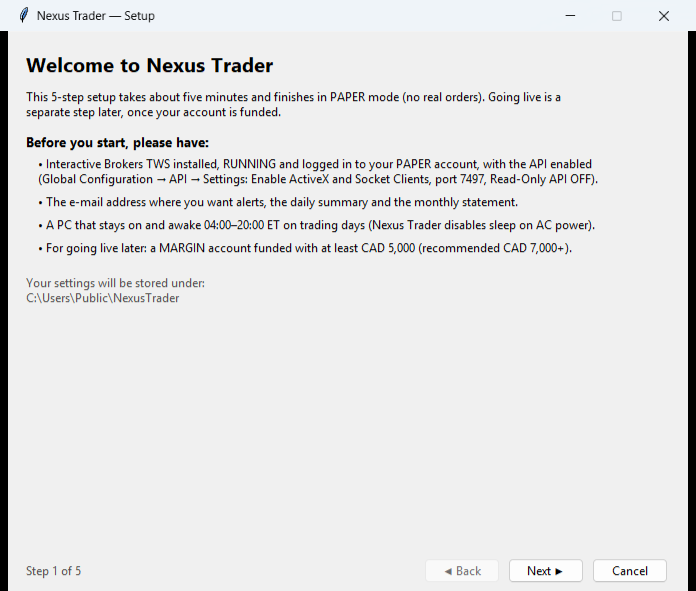
Start it — the setup wizard opens
Four steps, about five minutes. It ends in paper mode; real money is a separate decision later. Before you begin, TWS should be running and logged in to your paper account, with the API settings from part 3 in place.
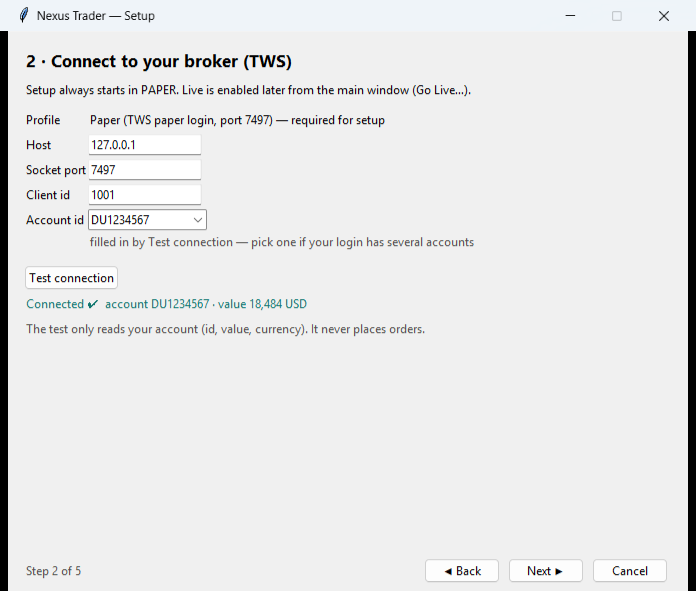
Connect to the broker
The wizard fills in the host, port and client id for paper mode. Press Test connection: it reads the account id and its value and shows them back to you. Nothing is ordered by the test. If your login has several accounts, pick the one the bot should manage.
If the test fails, part 7 lists what each message means.
No licence key to enter
Paper mode is free and needs no licence, so the wizard goes straight from the broker test to your e-mail address. A licence is only for live trading: when your account is funded and Nexus has approved it, you get a key and activate it from the main window (Activate licence…). The Review page of the wizard also has an “Already have a licence? Activate it…” button for that case.
Choose where alerts go
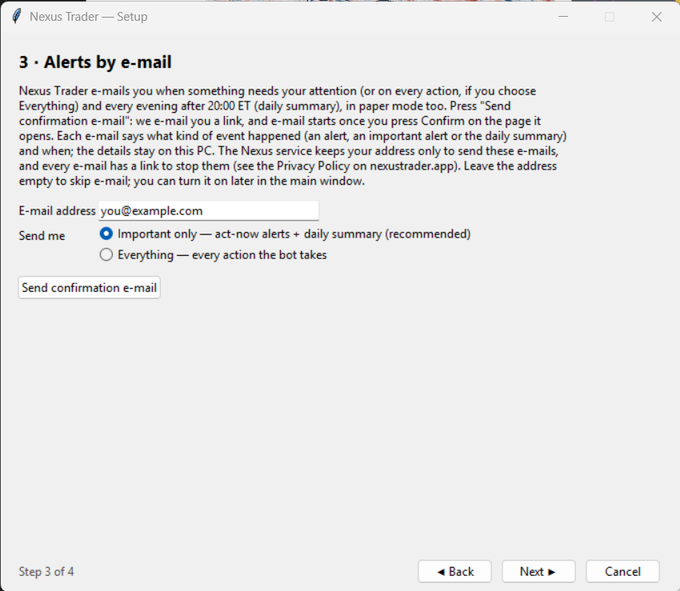
One address receives act-now alerts and an evening summary shortly after 20:00 ET, in free paper mode too, and a monthly statement once you are trading live. Press Send confirmation e-mail: we e-mail you a link, and e-mail starts once you press Confirm on the page it opens (check the spam folder if it does not arrive). Until then, and always, the Nexus Trader window shows your account and every action the bot takes. Important only is the setting to keep — it e-mails you when something needs attention rather than on every action. In paper mode every e-mail has a link to stop them, and one address can be used on up to three PCs.
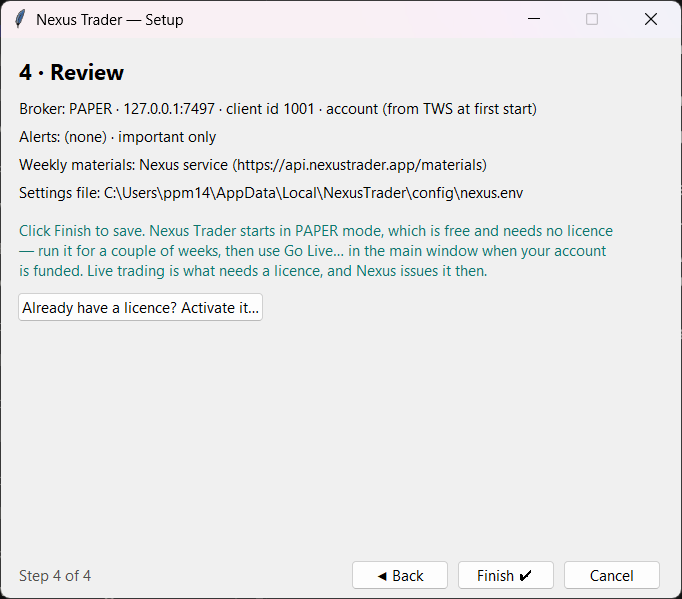
Review and finish
The last step repeats what will be saved and where. Press Finish.
5 · First day, and the one weekly duty
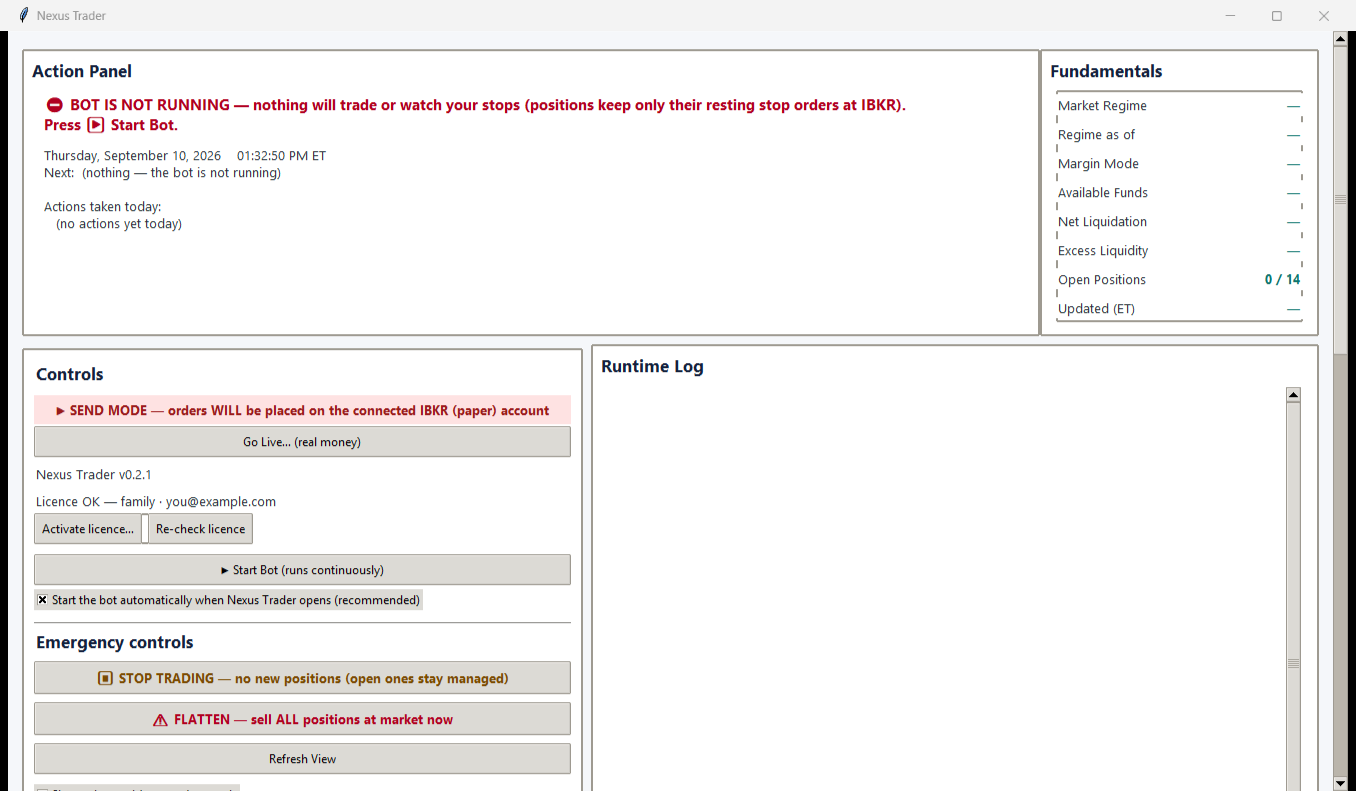
After the wizard, the main window is where you live. Nothing trades until you start the bot.
Start the bot
Press Start Bot. Leave Start the bot automatically when Nexus Trader opens ticked so it comes back by itself after a restart. The panel at the top says what it is doing and when it next wakes; the log on the right is the detail.
Two controls are worth knowing before you need them. STOP TRADING stops new positions being opened while the bot keeps managing and protecting what you already hold. FLATTEN sells everything at market. Both are one button.
What a normal day looks like
- 04:00 ET the bot wakes and starts watching stops in extended hours.
- Through the day it checks positions against their stops and repairs anything missing.
- 15:55 ET one decision cycle: it sells what its rules say to sell, and buys what they say to buy.
- 20:00 ET the daily summary e-mail (in paper mode within about 15 minutes of it), once your address is confirmed.
You are e-mailed when something needs you and otherwise left alone; the same notices appear in the Nexus Trader window.
The weekly duty: log TWS in again every Sunday
6 · Going live, later
Live trading is a separate, deliberate step, and it is by approval.
Run in paper for a few weeks first. When you and Nexus agree you are ready, you will need a funded margin account, the live market-data subscription, TWS logged in to the live account on port 7496, and the in-app Live Trading Risk Acknowledgment, which you read and confirm item by item. The switch itself is the Go Live button in the main window; it asks for the last four characters of the account before it will do anything.
7 · When something does not work
| What you see | What it usually means | What to do |
|---|---|---|
| "nothing accepted the connection" (once setup is finished, the main window shows "IBKR NOT reachable") | TWS is not running or not logged in, TWS is logged in to your live account (port 7496 by default, not 7497), the API switch is off, or the port does not match | Start TWS and log in to your paper account; tick Enable ActiveX and Socket Clients; check the port against the table in part 3. If this happens every morning, see "TWS is gone every morning" below |
| "accepted the connection but did not answer the API handshake" | TWS may be waiting for someone to answer a pop-up asking to accept the connection | Look for the pop-up (next row); if there is none, restart TWS, log in, and test again |
| A TWS pop-up asks you to accept an incoming connection | Allow connections from localhost only has been unticked | Click No on any of these pop-ups; tick the box again in the API settings (part 3), click OK, and test again; nothing needs adding to Trusted IPs. Clicking Yes is not a fix: it lets that one connection in, whatever sent it, and TWS asks again next time |
| "did not finish starting the API session" / "closed the API connection before it was ready" | TWS may still be starting up or not be fully logged in, or someone may have clicked No on a TWS pop-up | Wait a minute and test again; if it keeps happening, restart TWS and log in |
| "refused client id" | Another program on this PC is already connected to TWS with that client id (Nexus Trader itself runs only one copy) | Close that program; if nothing else is connected, restart TWS, log in, and test again |
| "PROFILE/ACCOUNT MISMATCH" | TWS is logged in to a different kind of account than the mode the bot is in — during setup and in paper mode, TWS is logged in to your live account | Log TWS in to the account that matches the mode: your paper account, unless you have switched the bot to live with Go Live…; ignore any suggestion in the message to edit settings files |
| Older versions: "did not provide nextValidId", or the test stays on "Connecting to TWS …" | Before version 0.2.2 most connection problems showed that one message, and a waiting TWS pop-up could keep the test running indefinitely | Work through the rows above. If you are still in setup, download and run the current installer from the Get started page; a copy that already runs the bot downloads updates by itself and installs them when you restart Nexus Trader outside 04:00–20:00 ET |
| Repeated "stop check skipped" notices (live) | Delayed or missing market data on a live account | Subscribe to live US data (paper mode accepts the delayed feed); allow one trading day |
| TWS is gone every morning: it closes at night and does not reopen (the main window shows "IBKR NOT reachable" while TWS is closed; a few minutes of it around 10:00 PM New York time is the nightly restart and is normal) | TWS is set to Auto logoff; the PC was off, asleep or restarting at the restart time; TWS was closed another way (File → Exit, a crash); or a TWS self-update failed during the restart. If TWS sits at a login window instead, IBKR wants a fresh login (Sunday, or after the same username logged in elsewhere) | Start TWS and log in; set TWS's time zone to America/New_York and Lock and Exit to Auto restart at 10:00 PM with Never lock selected (part 3); leave the PC on day and night |
| Orders never fill, a stop could not be placed, or TWS shows the bot's order with a Transmit button or a warning pop-up | Read-Only API is on, or TWS is holding the order for a click | Turn Read-Only off; tick Bypass Order Precautions for API Orders on the API → Precautions page (part 3). Do not click Transmit on an order TWS is already holding: the bot has already given up on it, and sending it late can open or close a position it does not expect. Cancel it in TWS; the bot's regular stop checks replace a missing stop |
| Everything stopped on a Monday | Nobody logged TWS in again after IBKR's Sunday reset | Start TWS, log in and approve the phone prompt if asked — part 5 |
| Everything stopped after a Windows update | The PC restarted or went to sleep, and TWS did not come back | Sign in to Windows, start TWS and log in; leave the PC on and awake day and night |
| Everything stopped after TWS updated itself | Updating to TWS 10.45 or later can switch the API off once, for security | Open the API settings (part 3), tick Enable ActiveX and Socket Clients again, check the rest still matches the table, and click OK |
| IBKR approved a cash account | The application answers | Ask IBKR to upgrade it to margin before running the bot |
Where a row says "test again": during setup, press Test connection again; once the bot is running, it retries by itself.
Anything on the IBKR side — login, data billing, margin approval — is IBKR's client services; Nexus cannot see or log in to your account. Anything the software reports: inquiries@nexustrader.app, and we answer within one business day.
Before you leave it running
- TWS is logged in to the right account, its time zone is America/New_York, and Lock and Exit is set to Auto restart at 10:00 PM with Never lock selected
- The API is on, Read-Only is off, and Allow connections from localhost only is ticked
- Bypass Order Precautions for API Orders is ticked on the API → Precautions page
- IB Key works on your phone, and you have a weekly reminder to log TWS in again on Sunday
- The PC stays on and awake day and night
- The account is dedicated to the bot — nothing else trades in it
- A test e-mail sent with Send Test Email in the main window has arrived
- Live only: real-time market data is active (paper runs on the free delayed feed)